Roblox Graphics Settings Explained: Best Setup for Every Device
Roblox’s graphics settings have more impact on performance than most players realize. The default settings are calibrated for average devices, which means they’re often too high for budget phones and too conservative for capable ones.
This guide explains every setting, what it actually does, and the optimal configuration for three different device tiers in 2026.
How to Access Graphics Settings in Roblox
On Android (official app and Mod APK)
While in a game → tap the three-dot menu icon (top-left corner) → Settings → scroll to the Graphics section.
The settings menu is identical whether you are using the official app or our latest Roblox Mod APK version. The Mod Menu’s HD Graphics Enhancement operates separately from these in-game settings; both affect visual output but through different mechanisms.
On PC
Roblox app → in-game → Escape key → Settings → Graphics tab. PC has additional options not available on mobile.
What Each Setting Actually Does
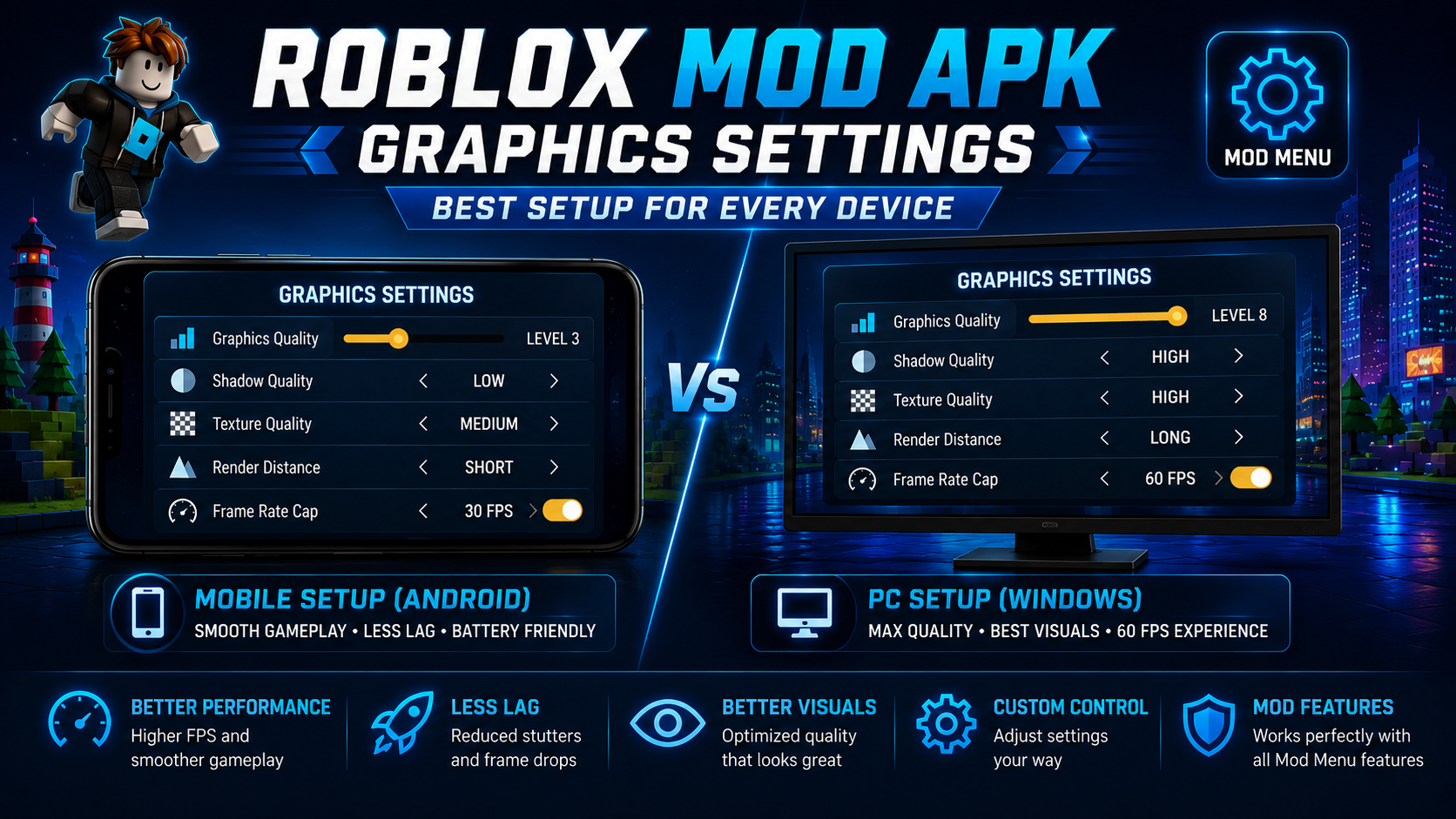
1. Graphics Quality (Level 1–10)
The master slider. This single setting adjusts multiple sub-settings simultaneously: shadow quality, texture resolution, draw distance, particle effects, and lighting complexity.
- Level 1–2: Minimum detail — flat textures, no shadows, minimal particles, and maximum performance.
- Level 3–4: Low detail—basic shadows and moderate textures, providing a good balance for budget devices.
- Level 5–6: Medium detail — Roblox’s default setting for most Android devices, fine for mid-range phones.
- Level 7–8: High detail — noticeable visual improvement, requiring 4+ GB RAM and a decent GPU.
- Level 9–10: Maximum detail — only appropriate for high-end devices due to significant performance costs.
The most common mistake: Leaving it at the default (usually Level 5–6) on a budget device that can’t sustain it, resulting in constant frame drops.
2. Render Distance (Draw Distance)
Controls how far away objects and terrain are rendered before they fade or disappear. Higher values show more of the game world but increase GPU workload.
In most Roblox games on Android, a medium render distance is more than sufficient. Roblox’s game worlds are typically designed around the default render range. Reducing it on lower-end devices provides a meaningful FPS improvement without noticeable visual impact during normal gameplay.
3. Shadow Quality
Shadows are one of the most GPU-intensive rendering elements. On low-end to mid-range Android devices, turning shadows to low or off provides one of the biggest individual performance gains available.
The trade-off: lower shadow quality makes environments look flatter and less realistic. Whether that matters depends on what game you’re playing. Competitive games like BedWars look nearly identical at low shadow quality; visually rich social games like Brookhaven look noticeably different.
4. Texture Quality
Controls the resolution of surface textures and how detailed objects and terrain surfaces appear. Higher texture quality requires more GPU memory (VRAM).
On devices with less than 3 GB of RAM, high texture quality causes loading stutters as the device constantly swaps textures in and out of memory. Medium texture quality is the practical ceiling for most Android phones.
5. Frame Rate Cap
Roblox on mobile defaults to a 60 FPS cap. Some devices can sustain this many budget Android phones can’t maintain 60 FPS in complex scenes.
If your device regularly drops below 60 FPS, there’s no penalty to capping at 30 FPS; it reduces the processing demand and produces a more consistent (if lower) frame rate, which often feels smoother than a variable 45–60 FPS that dips and spikes.
Optimal Settings by Device Tier
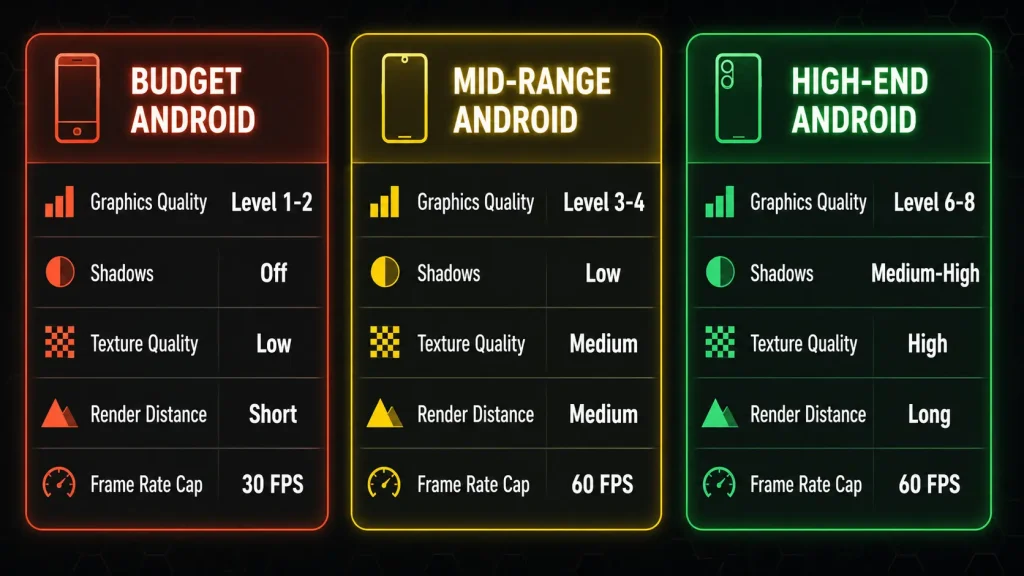
1. Budget Android (2 GB RAM, Mid-2020 and Earlier Chips)
Examples: Redmi 9, Galaxy A12, Tecno Spark series
| Setting | Recommended Value |
|---|---|
| Graphics Quality | Level 1–2 |
| Shadows | Off |
| Texture Quality | Low |
| Render Distance | Short |
| Frame Rate Cap | 30 FPS |
Expected result: Consistent 28–30 FPS in most Roblox games. No frame-drop stutters. Visuals are flat but completely playable.
2. Mid-Range Android (3–4 GB RAM, 2021–2023 Chips)
Examples: Redmi Note 11, Galaxy A54, Realme 9
| Setting | Recommended Value |
|---|---|
| Graphics Quality | Level 3–4 |
| Shadows | Low |
| Texture Quality | Medium |
| Render Distance | Medium |
| Frame Rate Cap | 60 FPS |
Expected result: Stable 45–60 FPS in most games. Occasional drops in very complex scenes. Good visual quality for the performance level.
3. High-End Android (6 GB+ RAM, 2022–2024 Chips)
Examples: Galaxy S23, Pixel 8, Redmi Note 12 Pro+
| Setting | Recommended Value |
|---|---|
| Graphics Quality | Level 6–8 |
| Shadows | Medium–High |
| Texture Quality | High |
| Render Distance | Long |
| Frame Rate Cap | 60 FPS |
Expected result: Consistent 60 FPS in most games. Excellent visual quality. Only the most complex Roblox experiences with heavy particle effects will cause occasional dips.
Graphics Settings with Roblox Mod APK
The Mod Menu’s HD Graphics Enhancement feature works separately from the in-game graphics slider. When both are set high simultaneously, the combined load is significantly heavier than either alone.
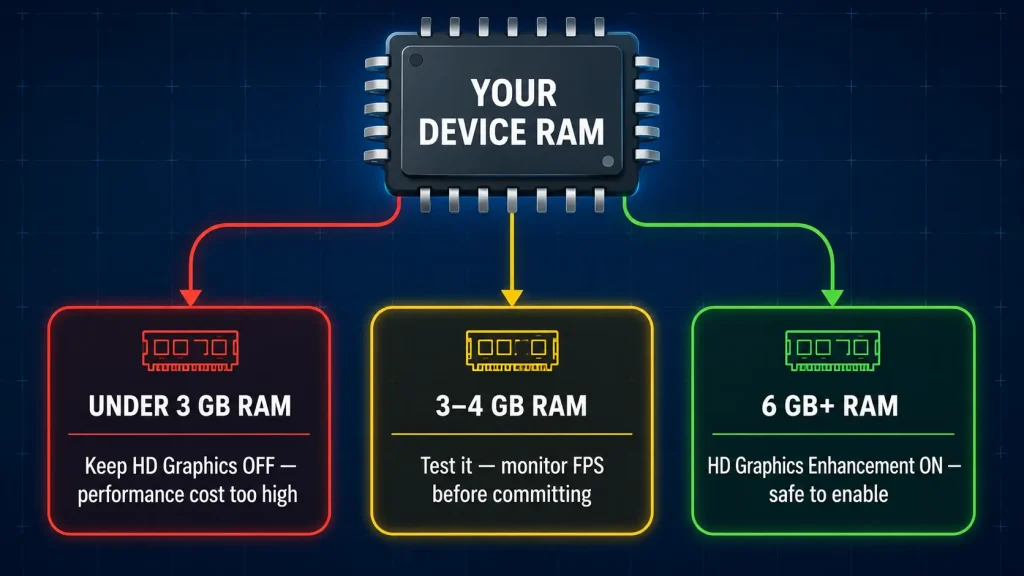
Recommended approach
On budget devices: Keep the in-game graphics at Level 1–2 AND keep HD Graphics Enhancement OFF. Running both simultaneously causes consistent frame drops.
On mid-range devices: In-game at Level 3–4, HD Graphics OFF or LOW.
On high-end devices: In-game at Level 6–7, HD Graphics Enhancement can be enabled. Monitor frame rate and reduce if needed.
The HD Graphics Enhancement in the Mod Menu is best understood as a bonus visual layer for capable devices, not a replacement for proper in-game graphics configuration.
PC Graphics Settings (Quick Reference)
For users running Roblox Mod APK on PC via an emulator, as covered fully in our Roblox Mod APK for PC guide, the emulator adds its own graphics layer. The in-game Roblox settings still apply inside the emulator window.
For PC users on the official native Roblox Windows app, the PC version has more granular control, including manual FPS cap adjustment and individual shadow texture and effects quality sliders separate from the master quality level.
Frequently Asked Questions
1. What graphics level should I use for Roblox on a mid-range Android phone?
Level 3–4 with shadows on Low is the most balanced setting for mid-range devices (3–4 GB RAM). It delivers decent visuals without the frame drops that higher settings cause.
2. Does lowering graphics settings in Roblox improve lag?
Yes, if your lag is frame-rate related (choppy visuals, stuttering). It won’t help network lag (rubber-banding action delays). See the Roblox Lag Fix guide to identify which type of lag you have.
3. Does Roblox Mod APK HD Graphics Enhancement work on all devices?
No. It’s most effective on devices with 4+ GB of RAM and a capable GPU. On budget devices, it increases rendering demand beyond what the hardware can sustain, causing worse performance than leaving it off.
4. Should I cap FPS at 30 or 60 for Android?
If your device can consistently maintain 60 FPS, keep the cap at 60. If it can’t (which is common on budget and older mid-range devices), cap at 30 for a more consistent experience; variable 45–60 FPS with dips often feels worse than stable 30 FPS.
5. Do graphics settings affect how Roblox Mod APK features work?
No. Mod Menu features (Fly Mode, Speed Hack, Wallhack, etc.) operate independently of graphics settings. Lowering graphics quality won’t disable or affect any Mod Menu feature.
Conclusion
The right graphics settings for Roblox depend on your device, not on a universal “best” configuration. Budget devices need Level 1–2 with shadows off. Mid-range devices run well at Level 3–4. High-end phones can push Level 6–8 comfortably.
The most common mistake is leaving settings at default on a device that can’t sustain them. Five minutes adjusting these sliders makes more difference to daily playability than any other single change.
For Mod APK users experiencing lag, disable HD Graphics Enhancement first and reduce the in-game slider by one or two levels. That combination resolves most performance issues. Full lag troubleshooting in Roblox Lag Fix Android.